
The Best Screenshot Tool for Mac in 2026: CleanShot X
If you use a Mac, you probably know the classic screenshot shortcuts: Cmd + Shift + 3, Cmd + Shift + 4, and Cmd + Shift + 5.
macOS includes several built in tools that allow you to capture your entire screen, a selected area, or open the screenshot toolbar.
They are powerful once you remember them, but they are not always the most comfortable shortcuts to use. Most of them require two hands and a bit of muscle memory.
For occasional screenshots this is perfectly fine.
But when screenshots become part of your daily work the workflow starts to feel slower. Capturing the image is only the first step. Annotating it, copying it to your clipboard, or sharing it quickly often requires extra actions.
In my daily work I probably take dozens of screenshots. Sometimes to capture a UI element, sometimes to document a workflow, or simply to explain something quickly to someone.
Over time I realized that screenshots are not just images. They are part of a workflow.
That is exactly where CleanShot X makes a difference.
The best screenshot tool for Mac in 2026: CleanShot X
When I switched from Windows to Mac, one of the first small frictions I noticed was screenshots.
On Windows the workflow is incredibly simple. Press Windows + Shift + S, capture what you need, then paste it instantly anywhere with Ctrl + V.
The screenshot goes directly to your clipboard, so you can drop it into Slack, Notion, an email, or any document in seconds.
On macOS screenshots work differently. By default the system saves them as image files on the desktop.
That works perfectly fine for occasional captures, but it becomes much less convenient when you take screenshots dozens of times a day.
If you want to annotate them, copy them to your clipboard, or share them quickly, the process usually involves a few extra steps.
This is exactly the gap CleanShot X is designed to solve.
Instead of treating screenshots as simple image files, CleanShot X turns them into a fast workflow for capturing, editing, and sharing information.
Combined with a clipboard manager like Paste, screenshots can instantly become part of your clipboard history, making them easy to reuse later.
Features That Actually Change the Workflow
Before diving into the individual features, one small tweak completely changed how I use screenshots.
I mapped the screenshot shortcut to the key located between Esc and Tab on my keyboard. It is a key I rarely use, and CleanShot X allows you to assign custom shortcuts easily.
Now taking a screenshot only requires a single key press. I do not have to remember complex shortcuts or move my hand away from the trackpad.
It might sound like a small change, but when you take dozens of screenshots every day, reducing the action to one key makes the workflow feel almost instant.
Quick Access Overlay
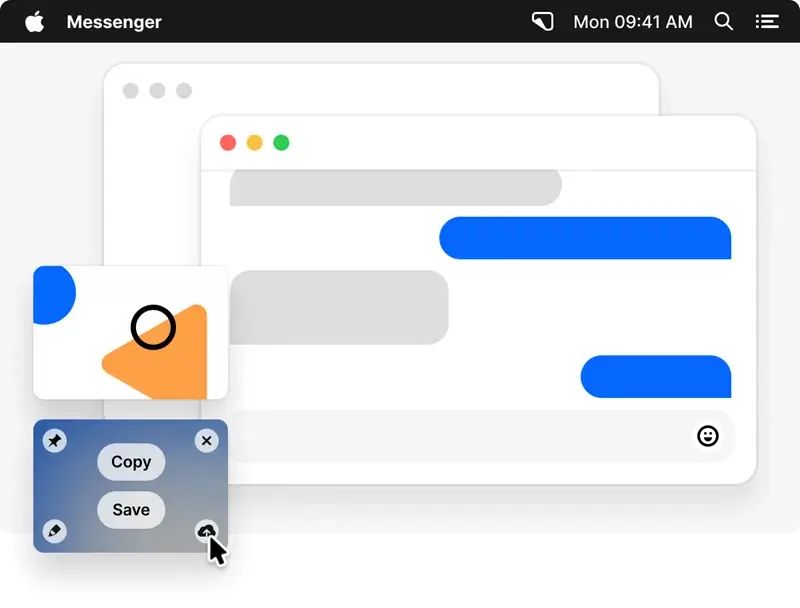
Right after taking a screenshot, CleanShot X displays a small floating preview in the corner of your screen.
From this overlay, you can instantly copy, annotate, save, upload, or drag the screenshot into another application. It removes the need to open a separate editor or search for the file.
What sounds like a small detail quickly becomes one of the most important parts of the workflow.
Pin Screenshots (Floating Screenshots)
.webp)
Sometimes you take a screenshot because you need to reference it while continuing to work.
CleanShot X allows you to pin the screenshot directly to your screen, where it stays visible above all other windows. You can resize it, move it, or adjust its opacity while working underneath it.
This is extremely useful when comparing interfaces, following instructions, or referencing design details.
Scrolling Capture
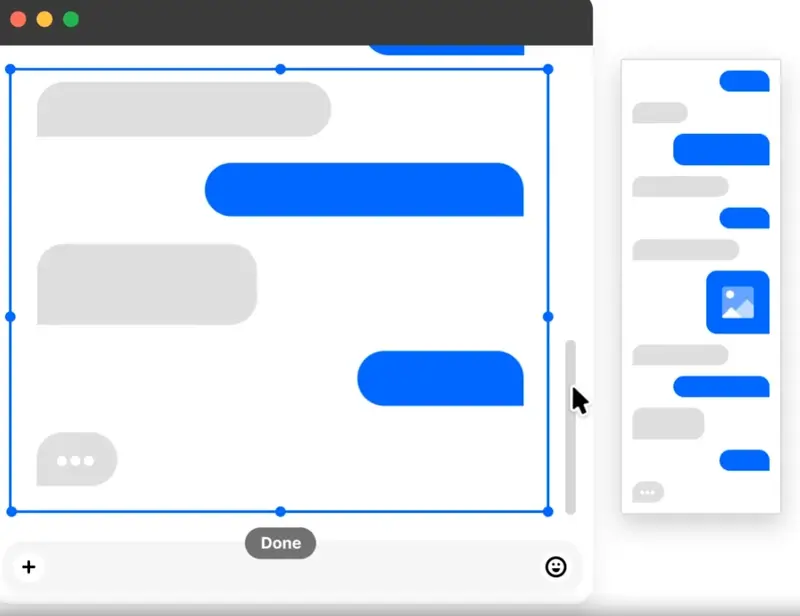
Not everything fits on a single screen.
CleanShot X can capture scrolling content automatically, whether it's a long webpage, documentation, chat history, or code snippet.
Instead of stitching multiple screenshots together manually, the tool captures everything in one clean image.
Built-in Annotation Tools
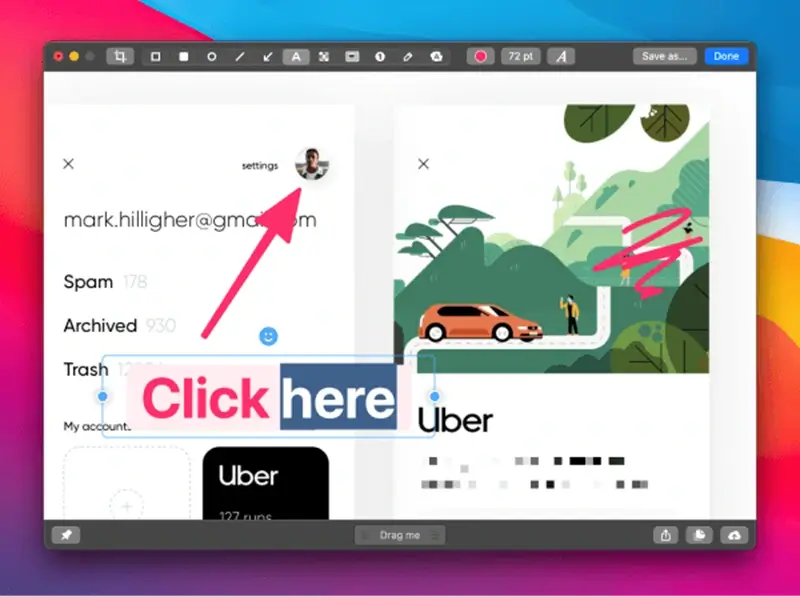
Explaining something visually is often faster than writing a long message.
CleanShot X includes a powerful built-in editor with arrows, highlights, text annotations, blur and pixelation tools, counters for tutorials, and more.
Because the editor opens instantly after capture, adding context to a screenshot takes just a few seconds.
Hide Desktop Icons
This is a surprisingly useful feature.
CleanShot X can automatically hide the icons on your desktop while capturing a screenshot or recording your screen.
If you regularly share screenshots, record tutorials, or present something during a call, this helps keep everything clean and distraction-free.
Built-in Cloud Sharing
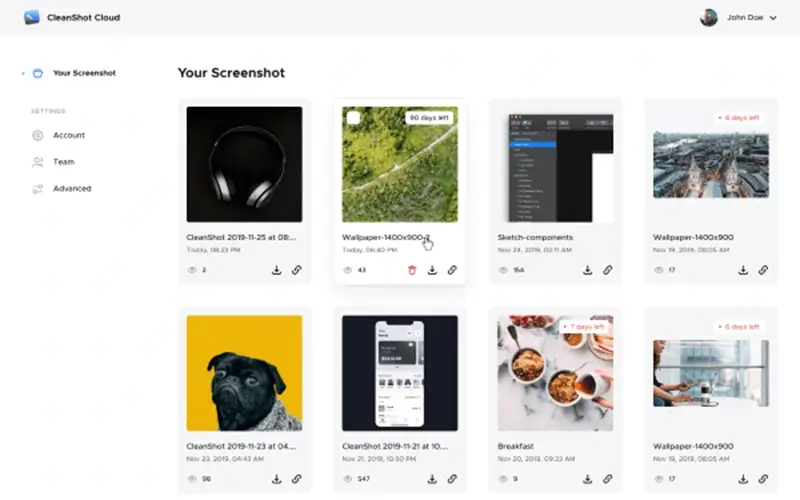
Another feature worth mentioning is CleanShot Cloud.
With one click, you can upload a screenshot or screen recording and instantly get a shareable link. This is particularly useful when sharing something quickly with a team, a client, or when reporting a bug.
The cloud service also supports password-protected links, self-destruct options, and even custom domains for teams.
That said, using CleanShot Cloud is completely optional. The app works perfectly fine without it, and you can still copy screenshots to your clipboard or drag them into any app.
For quick sharing workflows, however, the built-in cloud integration is surprisingly convenient.
+50 features and settings
.webp)
CleanShot X includes far more features than the ones covered above. In fact, the app offers dozens of additional settings and customization options that allow you to fine tune how screenshots and recordings behave.
From custom shortcuts and advanced annotation tools to recording options and workflow tweaks, there is a surprising amount of flexibility once you start exploring the settings.
If you are curious about the full list of capabilities, you can explore the complete overview on the official CleanShot X features page.
Pros and Cons
Like any productivity tool, CleanShot X has clear strengths, but it is not perfect either.
Pros
- Extremely fast screenshot workflow with instant preview overlay
- Excellent built-in annotation tools for explaining things visually
- Reliable scrolling capture for long webpages or documentation
- Floating screenshots are incredibly useful for referencing content while working
- Built-in cloud sharing makes it easy to generate quick shareable links
- Clean interface that feels well integrated with macOS
Cons
- The number of features and settings can feel overwhelming at first
- Some advanced options take time to fully discover
- Paid app compared to simpler screenshot tools
- The cloud sharing feature is useful but not essential for most workflows
Pricing and Why I Use It Through Setapp
After looking at the features, the next question most people ask is simple: how much does CleanShot X cost?
The app offers two main pricing models depending on your needs: a one-time purchase for individual users and a cloud subscription designed for teams.
Pricing Overview
| Plan | Price | Best For | Includes |
|---|---|---|---|
| App + Cloud Basic | $29 one-time | Individual users | Mac app license, 1 year of updates, 1 GB Cloud storage, optional $19/year renewal |
| App + Cloud Pro | $8/user/month (annual) or $10/month | Teams and power users | Unlimited cloud storage, custom domain, secure sharing, team management |
For most individual users, the Basic plan is more than enough since all the core screenshot features are included in the app itself.
Personally, I use CleanShot X through Setapp.
Setapp bundles many Mac productivity apps into a single subscription, which makes it convenient if you already use several of these tools. I will cover Setapp in more detail in a dedicated article.
Screenshot Tool Alternatives on Mac
If CleanShot X feels like more than you need, a few other screenshot tools on macOS focus on simpler workflows.
One popular option is Shottr. It is lightweight, fast, and focuses on essential screenshot features like quick captures, basic annotations, and scrolling screenshots. For users who prefer a minimal tool with very little setup, Shottr can be a great choice.
Another alternative is Xnapper. This tool focuses more on presentation, helping users create visually polished screenshots with automatic padding, backgrounds, and layout adjustments. It is particularly popular among developers and creators who share screenshots on social media.
Both tools solve specific needs very well.
However, CleanShot X remains the most complete solution if you want a tool that covers the entire screenshot workflow from capturing and annotating to recording, sharing, and organizing your screenshots in one place.
Quick Comparison
| Tool | Price | Available on Setapp | Best For | Limitation |
|---|---|---|---|---|
| CleanShot X | $29 one-time (1 year updates) | Yes | Complete screenshot workflow | Many features may feel overwhelming |
| Shottr | Free or $12 license | No | Lightweight and fast screenshots | Fewer advanced features |
| Xnapper | $29.99+ one-time | Yes | Polished screenshots for social media | More focused on presentation |
Conclusion: Is CleanShot X Worth It?
By combining capture tools, annotation features, floating screenshots, and quick sharing into a single workflow, CleanShot X turns screenshots into something much more practical than simple image files saved on your desktop.
In my daily workflow, screenshots are no longer just files. They become quick pieces of information that I can capture, annotate, and share in seconds.
When combined with the right tools, such as a clipboard manager like Paste, this workflow becomes even more powerful. Screenshots stop being static images and become part of a broader flow of information that you can reuse whenever you need it.
For anyone who regularly documents processes, reports bugs, or explains things visually, this can make a real difference.
If you are building a productivity setup on macOS, CleanShot X is easily one of the most useful tools you can add.
In a future article, I will also take a closer look at Setapp, since several of the apps mentioned on this blog including CleanShot X are available through it.
More in Tech Apps
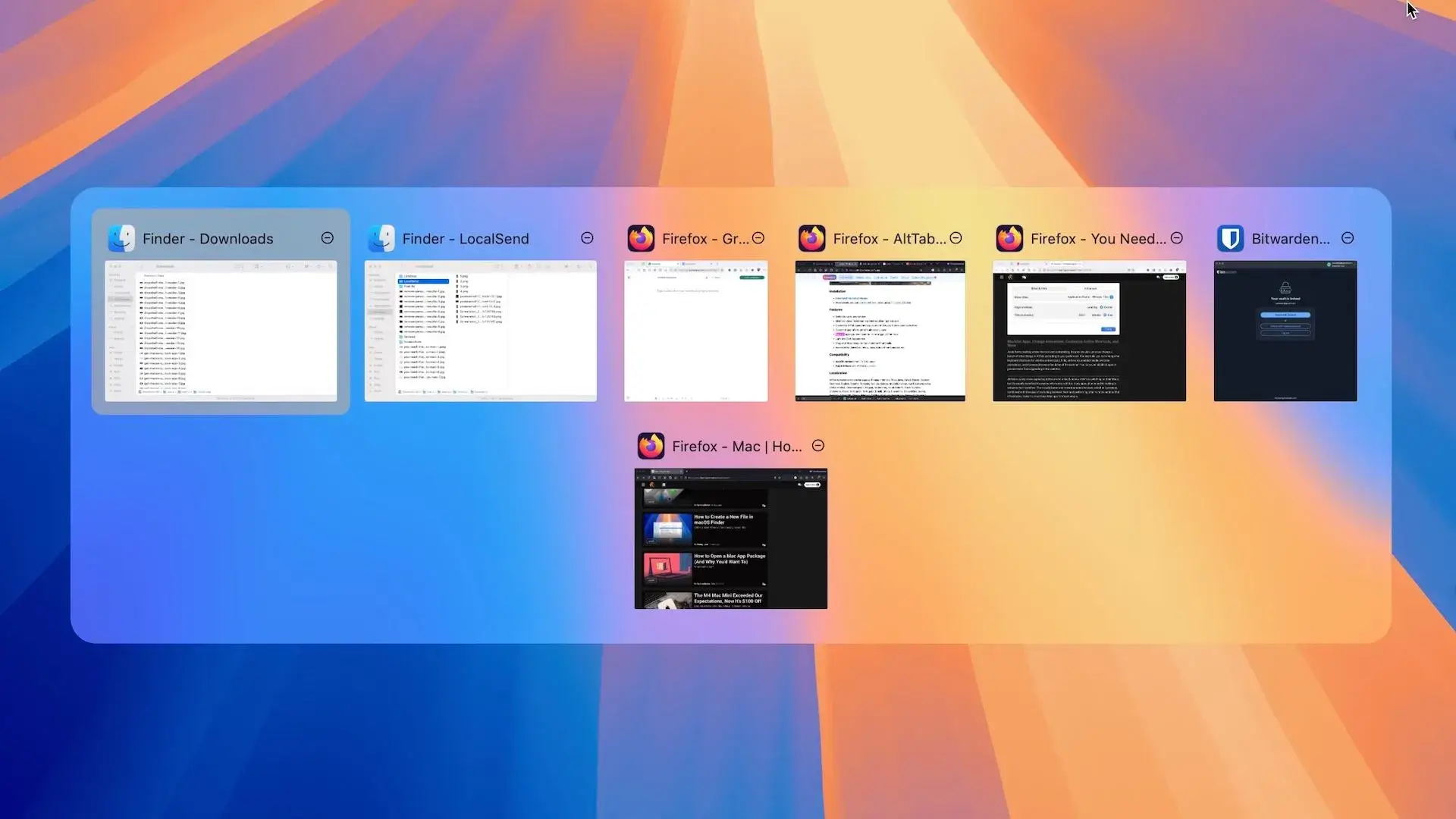
AltTab vs DockDoor on macOS 2026: Rethinking Window Switching
AltTab vs DockDoor on macOS: compare speed, previews, customization and privacy to find the best window switcher for your workflow.
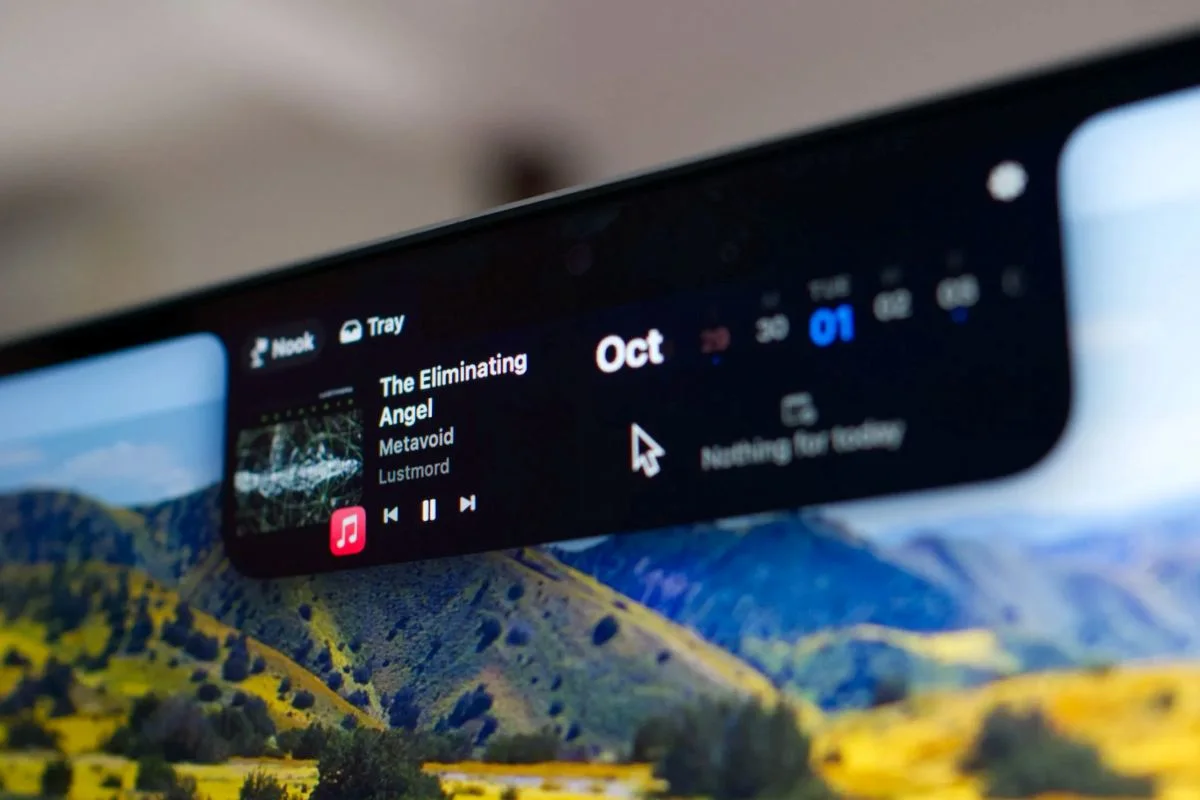
The Best Notch Apps for MacBook 2026 (macOS Comparison Guide)
I tested the best notch apps for MacBook to see which one really improves productivity. Here’s the full comparison and my final choice.
.webp&w=3840&q=75)
The Best Clipboard History Manager for Mac in 2026
macOS clipboard history is still limited. Here is the best clipboard history manager for Mac in 2026 and why it makes a real difference.