
AltTab vs DockDoor on macOS 2026: Rethinking Window Switching
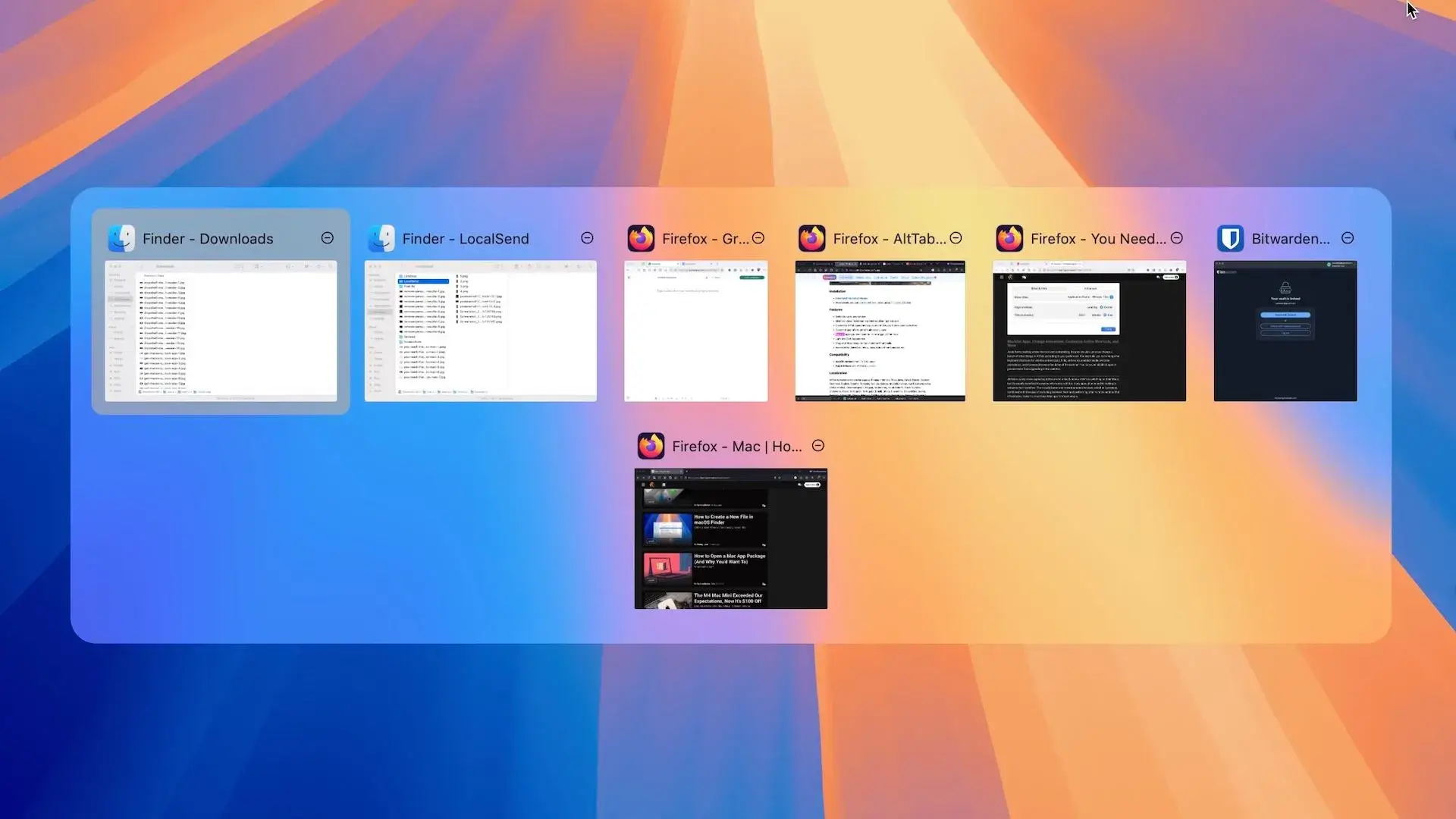
If you are anything like me, your Mac is rarely running just one clean window per app.
Multiple Chrome sessions. Several Finder windows. Maybe a couple of projects open side by side. At some point, switching between them stops feeling fluid and starts feeling slightly frustrating.
macOS handles window switching differently than Windows. Command + Tab switches between apps, not individual windows. And while Command + ` exists, it does not always feel intuitive when you are juggling many windows from the same application.
For some people, the native experience is enough. For others, especially those coming from Windows or managing multiple browser sessions, it can feel incomplete.
That is where third party window switchers come in.
Two names consistently dominate the discussion: AltTab and DockDoor . Both are free, open source, and widely used. But they approach the problem differently.
If you do not want to read the full breakdown, here is the short version.
Quick Comparison (For the Impatient)
| Criteria | AltTab | DockDoor |
|---|---|---|
| License | Free & open source | Free & open source |
| Primary Function | Window switcher replacement | Dock enhancement + window preview |
| Window Previews | In switcher interface | On Dock hover + switcher |
| Switch Between App Windows | Yes | Yes |
| Keyboard Shortcuts | Fully customizable | Customizable |
| Mouse Interaction | Minimal focus | Strong focus (Dock hover) |
| Customization Level | Moderate | More extensive |
| Resource Usage | Lightweight | Slightly heavier (visual layer) |
| Required Permissions | Accessibility + Screen Record | Accessibility + Screen Record |
| Maturity | Very stable and established | Actively evolving |
Both apps solve the same problem, but they approach it differently. AltTab is more direct and minimal. DockDoor offers more visual features and customization.
Why macOS Window Switching Feels Limited
macOS approaches window management differently than Windows.

Command + Tab switches between applications, not individual windows. If you have five Chrome windows open, they are grouped under one icon. To move between them, you either cycle blindly or rely on Mission Control.
This design is not broken. It is intentional.
macOS is application-centric. Windows are secondary to the app itself.
For light usage, this works perfectly fine.
But if you tend to keep multiple browser sessions, project folders, or reference documents open at the same time, the system starts to feel less precise. You know the app you want. You are just not sure which window you are about to land on.
That small uncertainty is where third-party switchers become relevant.
Not because macOS fails.
But because some workflows demand more granularity.
AltTab
 (1).webp)
What It Actually Changes
AltTab replaces the native Command + Tab behavior with a window-based switcher.
 (1).webp)
Instead of seeing a row of application icons, you see individual window previews. Each window becomes selectable, regardless of which app it belongs to.
The logic shifts from “which app?” to “which exact window?”
That small change removes a layer of guesswork.
Where It Excels
AltTab is extremely direct.
It launches instantly, responds to keyboard input without delay, and keeps the interaction focused. There is no added visual layer on top of the Dock, no dependency on mouse hover behavior.
If you rely heavily on keyboard shortcuts, this feels natural and efficient.
It also remains lightweight. It does one job, and it does it well.
Where It Falls Short
AltTab is intentionally minimal.
It does not try to enhance the Dock. It does not reshape the visual structure of macOS. It focuses almost exclusively on improving the switcher itself.
If you prefer mouse-driven workflows or want deeper customization beyond the switcher interface, it may feel limited.
Its strength is also its constraint.
Required Permissions
Like most advanced window tools, AltTab requires Accessibility access and Screen Recording permissions.
These system-level permissions allow it to detect and display window previews accurately.
As mentioned earlier, granting these permissions can feel uncomfortable at first, especially if you are not used to macOS making system access so explicit.
AltTab is open source, which adds transparency. The code is publicly available and widely reviewed within the community.
Still, installing it means trusting a third-party utility with elevated system access.
.webp)
.webp)
.webp)
Ideal User Profile
AltTab is ideal if:
- You prefer keyboard-first navigation
- You want a Windows-like Alt-Tab experience
- You value speed and simplicity over visual enhancements
- You want a focused tool rather than a system extension
It feels less like modifying macOS and more like refining one specific interaction.
DockDoor

What It Actually Changes
DockDoor does not simply replace the app switcher.
.webp)
It enhances the Dock itself.
Instead of invoking a separate interface, you can hover over an application in the Dock and instantly preview all of its open windows. Each window appears visually, allowing you to select the exact one you want.
It turns the Dock into an active window navigation layer rather than just a launcher.
The shift is subtle but meaningful.
Where It Excels
DockDoor shines in visual workflows.
 (1).webp)
If you navigate with a trackpad or mouse, being able to preview windows directly from the Dock feels intuitive. You do not need to trigger a separate switcher. You simply move your cursor and see what is open.
It also offers deeper customization options compared to AltTab. You can adjust how previews behave, how they appear, and how interactions are handled.
For users who often manage multiple windows from the same app, especially browsers or file managers, this added visibility reduces small navigation mistakes.
It feels integrated rather than replaced.
.webp)
Where It Falls Short
Because DockDoor adds a visual layer on top of the Dock, it is slightly more complex.
There are more settings. More behavior to configure. More visual elements interacting with the system.
For users who prefer minimalism or strictly keyboard-driven navigation, it may feel less direct than AltTab.
Its flexibility can also mean a slightly steeper learning curve.
.webp)
.webp)
.webp)
Required Permissions
DockDoor requires similar system permissions: Accessibility access and Screen Recording.
Like AltTab, it needs deep system visibility to display live window previews accurately.
As mentioned earlier, these permissions can feel intrusive at first. macOS makes system-level access very explicit, and that transparency can be surprising if you are not used to it.
DockDoor is also open source. In the web world, “open source” carries weight. It means the code is publicly available and inspectable.
Still, choosing DockDoor means accepting the same fundamental trade-off: greater control in exchange for elevated access.
Ideal User Profile
DockDoor is ideal if:
- You prefer mouse or trackpad navigation
- You want visual confirmation before switching windows
- You enjoy customization and tweaking system behavior
- You like extending macOS rather than just replacing one shortcut
It feels less like a shortcut enhancement and more like a system extension.
Permissions and Open Source
Before deciding between AltTab and DockDoor, it is worth pausing on something important.
Both apps require elevated system permissions. Accessibility access. Screen Recording. Full interaction with your window layer.
As I said it in the intro, coming from Windows, this can be surprising. macOS makes these requests very explicit. You are not just installing a small utility. You are granting it visibility and control over parts of your system.
For some users, that is perfectly acceptable. For others, it is a line they prefer not to cross.
The reassuring part is that both AltTab and DockDoor are open source. In the web world, “open source” is almost a magic word. It means the code is public, inspectable, and continuously reviewed by the community.
That does not eliminate risk entirely. But it reduces the black box factor.
Still, this remains a trade-off.
More control and granularity, in exchange for deeper system access.
And that trade-off naturally leads to the third option.
Native macOS
There is a third path that often gets overlooked.
Do nothing.
Stick with the built-in shortcuts. Adapt to the application-centric model. Use Mission Control when needed. Accept the system as it was designed.
The advantage is simplicity.
No additional background processes. No extra permissions. No elevated system access granted to third-party utilities.
For many users, that is more valuable than convenience.
macOS is not broken. It simply prioritizes a different interaction model.
If your workflow does not suffer from the lack of per-window previews, the native experience remains the cleanest and most secure option.
Sometimes, the best optimization is restraint.
My Personal Choice
After testing both approaches, I decided to stick with DockDoor for now.
AltTab impressed me with its speed and clarity. It is direct, efficient, and extremely focused. If I were working almost exclusively from the keyboard, it would probably be the obvious choice.
But after years of using Windows, I realized that what I value most is visual confirmation. When juggling multiple Chrome sessions, Finder windows, or project files, being able to preview a window before switching reduces small but constant interruptions.
DockDoor feels slightly less minimal.
But it feels more comfortable.
That does not mean it is objectively better. It simply aligns more closely with how I work today.
And that is ultimately what this comes down to.
Not which app is superior.
But which interaction model creates less friction in your daily workflow.
macOS is not incomplete.
It is just opinionated.
And sometimes, a small utility is enough to bend it gently in your direction.
More in Tech Apps
The Best Notch Apps for MacBook 2026 (macOS Comparison Guide)
I tested the best notch apps for MacBook to see which one really improves productivity. Here’s the full comparison and my final choice.
The Best Screenshot Tool for Mac in 2026: CleanShot X
Discover why CleanShot X is the best screenshot tool for Mac in 2026, with powerful capture, annotation, and sharing features.
.webp&w=3840&q=75)
The Best Clipboard History Manager for Mac in 2026
macOS clipboard history is still limited. Here is the best clipboard history manager for Mac in 2026 and why it makes a real difference.